
Task Features
Tasks
Tasks are the specific steps you take to achieve your goals. Tasks are displayed in multiple places throughout the app, including the Schedule page, the Goal page, the Tasks page, and on home screen widgets.
Creating Tasks
Once you have created a Goal, you can start creating Tasks to achieve it. You can also create standalone tasks directly on the Schedule page without linking them to any specific goal. These standalone tasks will only appear on their assigned dates.
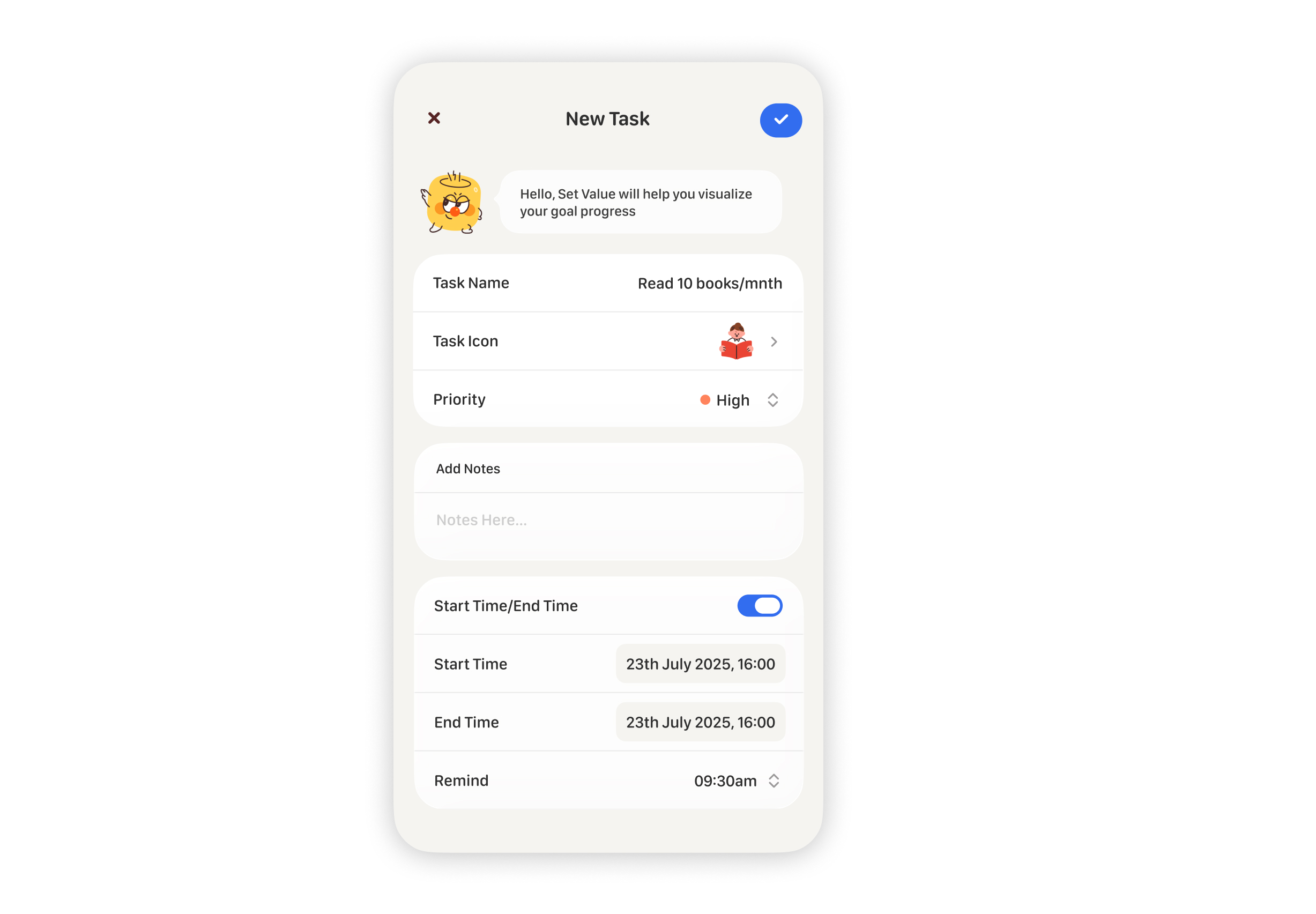
Task Types and Features
Tasks aren't strictly categorized by type, but you can enable various features within the task details.
- Tasks created under Canny (The Can) default to standard tasks.
- Tasks created under Cookie (The Biscuit) default to quantified tasks.
- Tasks created under Liz (The Ice Cream) default to timed focus tasks.
- Tasks created under Rick (The Garlic) default to habit-building tasks.
Task Scheduling
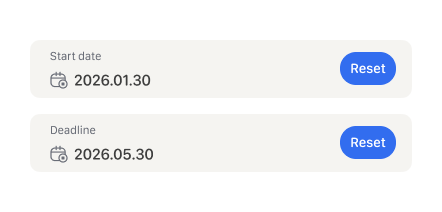
Two properties determine a task's schedule:
-
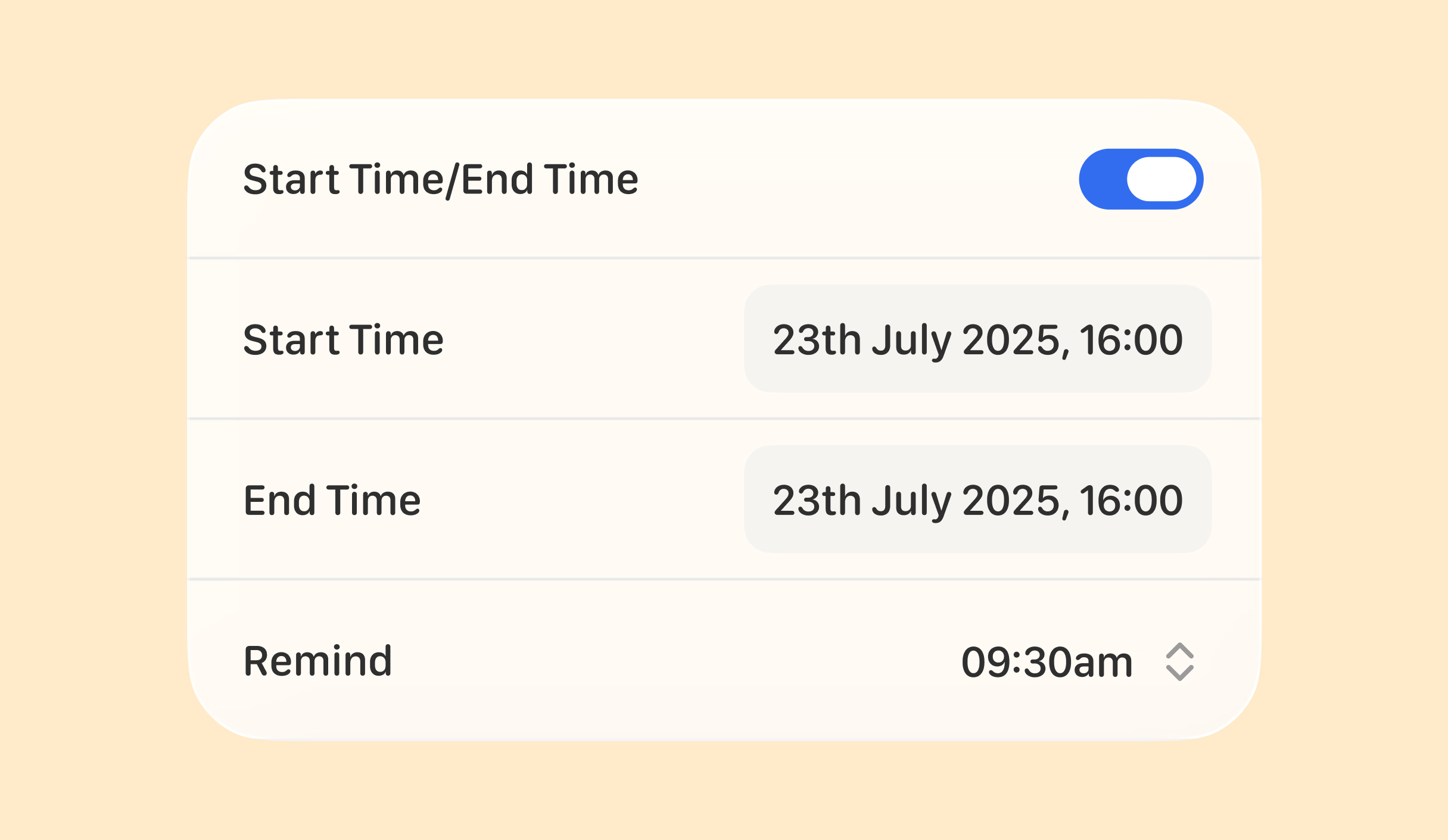
Task Start Time
-
Task Deadline
-
Once you set a start time or deadline, the task will appear in the daily schedule within that specified timeframe.
-
In the monthly view, the task will be displayed on the designated dates.
-
If you set up a recurring task, reminders will only trigger during the specified periods.
Recurring Tasks
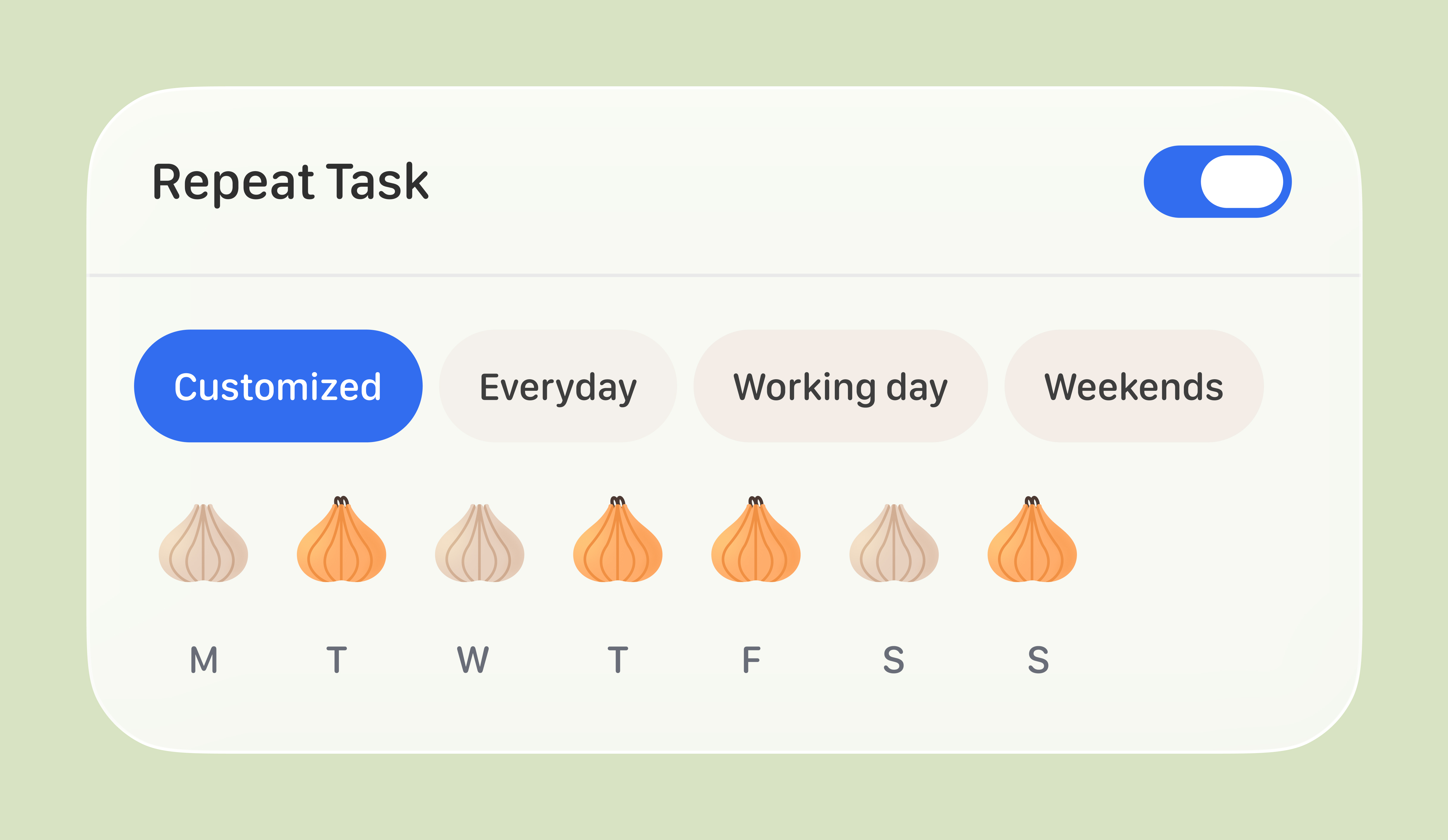
You can set tasks to repeat automatically.
For example, if you want a task to be completed once a day, you can set it to repeat "Daily."
There are multiple repeat options available:
- Daily
- Every X days
- Weekends
- Custom Weekly
- Custom Monthly
Task Icons
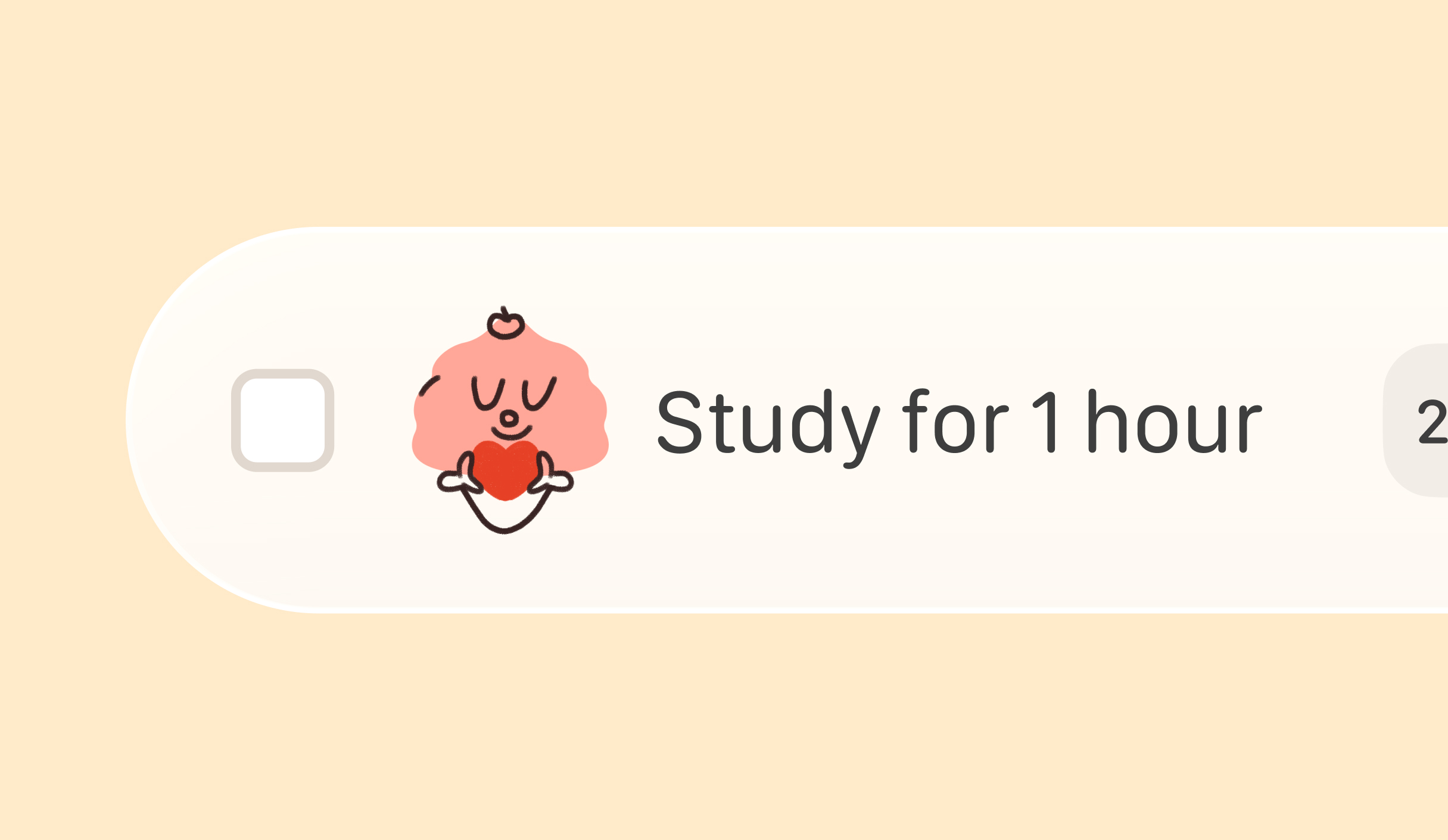
You can choose adorable icons for your tasks!
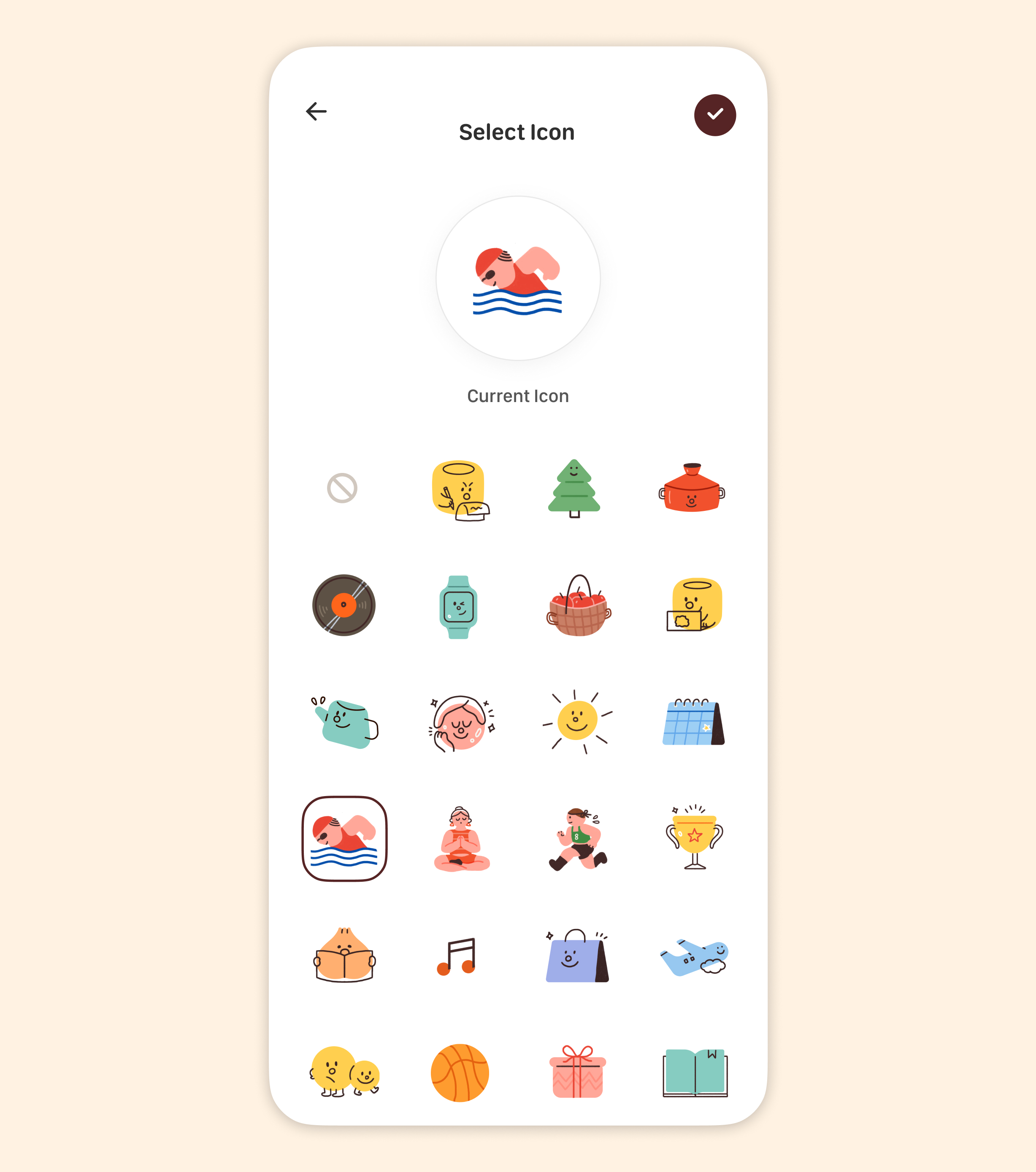
The chosen icon will be displayed next to the task name.
Task Reminders
You can set reminders to ensure you never miss a task.
Task Management Operations
- Drag and Drop: Within a goal and under the same tag, you can drag tasks to reorder them.
- Delete: Long-press a task and tap the delete button to remove it.
- Complete: Tap the checkbox to complete a task. If you've set a task to be completed X times a day, you'll need to tap it X times for it to be fully completed.
Task Details
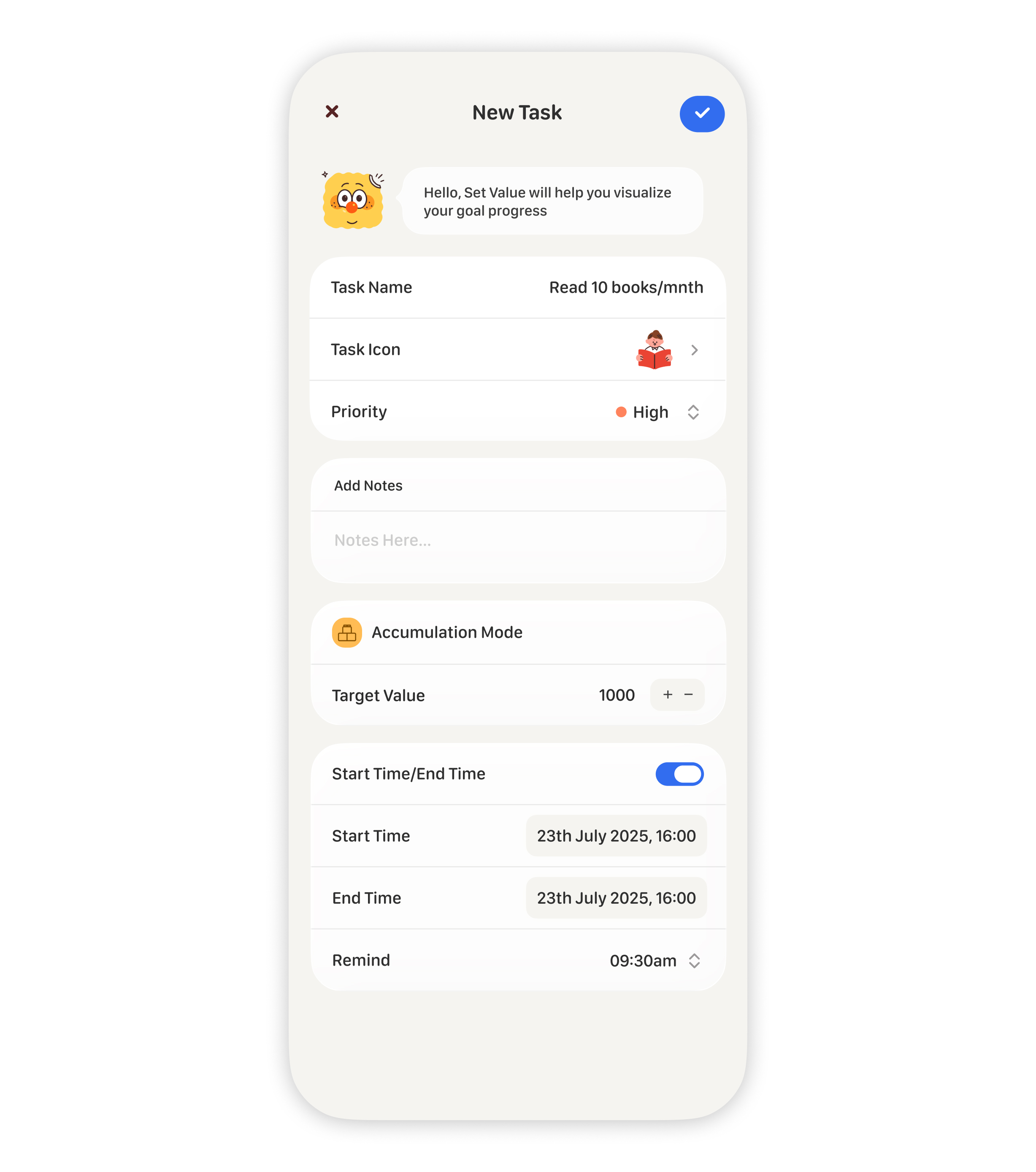
Tap on any task to enter its detailed view.
Deleting Tasks
- You can delete a task by long-pressing it.
- Alternatively, you can scroll to the very bottom of the task details page to find the delete option.